
Clearing a browser cache after a software upgrade is sometimes necessary to ensure that you're experiencing the most up-to-date version of the software and to avoid potential issues that can arise from using outdated files. The browser cache is a temporary storage area that saves files and data from websites you visit to help improve loading times and performance.
Follow the instructions below for the Internet browser application that you are using.
Microsoft Edge 
Google Chrome 
- On your computer, open Chrome.
- At the top right, click More
.
- Click More tools and then Clear browsing data.
- At the top, choose a time range. To delete everything, select All time.
- Next to "Cookies and other site data" and "Cached images and files," check the boxes.
- Click Clear data.
Mozilla Firefox 
- Click the menu button
 and select Settings.
 - Select the Privacy & Security panel.
- In the Cookies and Site Data section, click Clear Data….
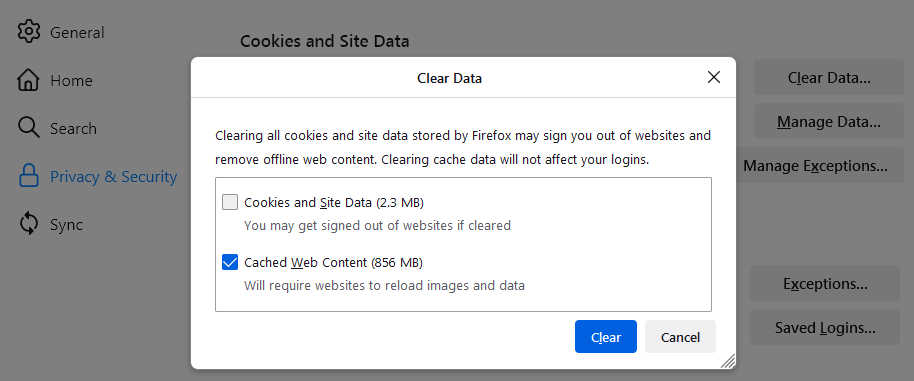
- Remove the check mark in front of Cookies and Site Data.
- With Cached Web Content check marked, click the Clear button.
- Close the Settings page. Any changes you've made will automatically be saved.
Empty cache using developer tools
Note: This is for chromium based browsers such as Chrome and Microsoft Edge.
- Open the webpage you want to access using a clean cache.
- Press F12 on the keyboard to bring up developer tools.
- Right-click on the refresh button
> select Empty cache and hard refresh/reload.
Comments
0 comments
Please sign in to leave a comment.